Linux Network Services
Table of Contents
Configuring SSH
Install
Some distro don’t include ssh server out of the box, or you forgot to check the option in the installation process.
1# debian base
2sudo apt install openssh-server -y
3
4# fedora/redhat
5sudo dnf install -y openssh-server
6
7systemctl enable --now ssh # or sshd depending on the distro
Copying key to Server
Before we disable password login to the server we need to add our public key in the server. If you haven’t generated your key. Keys are located at /home/yourusername/.ssh.
1ssh-keygen -t ed25519 -C "your_email@example.com"
2
3# If you are using a legacy system that doesn't support the Ed25519 algorithm, use:
4ssh-keygen -t rsa -b 4096 -C "your_email@example.com"
Now you can manually add it to server by login in and pasteing it to /home/user/serveruser/.ssh/authorized_keys. For root it is /root/.ssh/authorized_keys.
Copying key by command through remote access. On your pc or terminal run the command below, this will ask for the user password.
1$ ssh-copy-id root@serverIPorDNS
Hardening SSH Server
- Disable root login
- Disable password login
- Allow specific users only to log in on SSH
- Configure a nondefault port for SSH to listen on
Open file /etc/ssh/sshd_config.
1PermitRootLogin no # disable root login
2
3PasswordAuthentication no # disable password login
4
5AllowUsers bonifacio luna
6
7DenyUsers jose
8
9Port 22 # change ssh port
To take effect restart service.
1systemctl restart
2# or for openrc
3sudo rc-service ssh restart
Managing SElinux to Allow SSH port Change
Add the new port to the SELinux policy.
1semanage port -a -t ssh_port_t -p tcp PORTNUMBER
2
3# to verify
4sudo semanage port -l | grep ssh
5
6# restart service
7sudo systemctl restart ssh
Apache Web Server
I’m a Nginx guy, but apache is good for legacy application. Specially if you have handled application from big company that don’t want to upgrade to latest technology.
Install apache.
1# debian basee
2apt install apache2
3
4# centos base
5dnf install httpd
Start the Apache service and enable it to run on .
1systemctl enable --now apache2
2
3# or
4
5systemctl enable --now httpd
Key Terminology
-
Virtual Hosts: Enable a single server to host multiple websites by routing incoming requests to different directories based on the requested domain name.
-
Document Root: The main directory that contains your website’s files. On most Linux systems, this defaults to /var/www/html.
-
Modules: Apache can be extended with optional modules that add or enhance functionality. Common examples include mod_ssl for enabling HTTPS and mod_rewrite for URL rewriting.
-
Configuration Files: Apache is configured through files such as apache2.conf (or httpd.conf on some distributions), along with .htaccess files that apply settings at the directory level.
Creating First Website
Navigate to document root /var/www/html. Create a simple html.
index.html
1<html>
2<!-- <h2>  </h2> -->
3<h3>My First Website</h3>
4<p>Look at me Mom I'm a DevOps.</p>
You can use curl or use a web browser to check.
1$ curl localhost
2<html>
3<!-- <h2>  </h2> -->
4<h3>My First Website</h3>
5<p>Look at me Mom I'm a DevOps.</p>
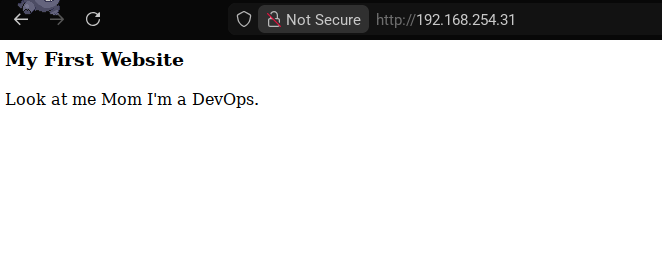
Main Configuration Files
Apache’s behavior is managed through a set of core configuration files, each serving a specific purpose:
-
apache2.conf (or httpd.conf on some systems): The primary configuration file where global settings and defaults are defined.
-
ports.conf: Specifies which ports Apache listens on for incoming connections.
-
sites-available/: Contains configuration files for individual websites, defining how each site should be served.
-
sites-enabled/: Holds symbolic links to the site configurations in sites-available that are currently enabled and active.
-
.htaccess: A per-directory configuration file that allows overriding certain Apache settings without modifying the main configuration files. It is commonly used for URL rewriting, access control, and custom error handling, provided that AllowOverride is enabled.
Implementing a Basic .htaccess for Redirects
Create a .htaccess on your document root.
.htaccess
1Redirect 301 /old-page http://example.com/new-page
Test the redirect on your browser.
Hosting Multiple Website
Now lets create two website running in one server. Create the document root.
1mkdir -p /var/www/website1 /var/www/website2
Create index.html for both document root.
1<html>
2<h3>Website 1</h3> <!-- Change this to 2 in website 2 -->
3<p>Look at me Mom I'm a DevOps.</p>
Create virtual host configuration file. Note that in debian base distro, it is using different folder /etc/apache2/sites-available.
1touch /etc/httpd/conf.d/website1.conf /etc/httpd/conf.d/website2.conf
/etc/httpd/conf.d/website1.conf
 1<VirtualHost *:80>
 2    ServerName website1.local
 3    ServerAlias www.website1.local
 4
 5    DocumentRoot /var/www/website1
 6
 7    <Directory /var/www/website1>
 8        AllowOverride All
 9        Require all granted
10    </Directory>
11
12    ErrorLog ${APACHE_LOG_DIR}/website1_error.log
13    CustomLog ${APACHE_LOG_DIR}/website1_access.log combined
14</VirtualHost>
/etc/httpd/conf.d/website2.conf
 1<VirtualHost *:80>
 2    ServerName website2.local
 3    ServerAlias www.website2.local
 4
 5    DocumentRoot /var/www/website2
 6
 7    <Directory /var/www/website2>
 8        AllowOverride All
 9        Require all granted
10    </Directory>
11
12    ErrorLog ${APACHE_LOG_DIR}/website2_error.log
13    CustomLog ${APACHE_LOG_DIR}/website2_access.log combined
14</VirtualHost>
Enable the sites.
1# debian base
2sudo a2ensite website1.conf
3sudo a2ensite website2.conf
4sudo systemctl reload apache2
5
6# in centos base, it is automatically loaded in conf.d folder.
Reload apache service.
1systemctl reload apache2
2# or
3systemctl relaod httpd
SSL Termination
To save you from headache look up Let’s Encrypt to generate your certificate, assuming you have a purchase a domain and have access to public IP. Or better yet, migrate your domain to Cloudflare and use their tunnel service.
Let’s assume you have a valid certificate, we can now terminate your website with TLS. First enable ssl module.
1# debian
2a2enmod ssl
3# centos
4dnf install -y mod_ssl
Let’s Encrypt certifacate path usually at /etc/letsencrypt/live/website.domain/. Edit website1 config. /etc/httpd/conf.d/website1.conf
 1<VirtualHost *:443>
 2    ServerName website1.example.com
 3    ServerAlias www.website1.example.com
 4
 5    DocumentRoot /var/www/website1
 6
 7    SSLEngine on
 8    SSLCertificateFile /etc/letsencrypt/live/website1.example.com/fullchain.pem
 9    SSLCertificateKeyFile /etc/letsencrypt/live/website1.example.com/privkey.pem
10
11    <Directory /var/www/website1>
12        AllowOverride All
13        Require all granted
14    </Directory>
15
16    ErrorLog /var/log/httpd/website1_ssl_error.log
17    CustomLog /var/log/httpd/website1_ssl_access.log combined
18</VirtualHost>
Reload service.
1systemctl reload apache2
2# or
3systemctl reload httpd
Reverse Proxy
A reverse proxy is a server that sits in front of one or more backend servers and forwards client requests to them. Clients communicate only with the reverse proxy, not directly with the backend services.
Instead of users accessing an application server directly, they access the reverse proxy, which then decides where and how to send the request.
In our example, the backend service will be a container on port 8080, we will terminate it using apache2 reverse proxy.
First install module.
1# debian
2a2enmod ssl
3a2enmod proxy
4a2enmod proxy_http
5a2enmod headers
6
7# centos
8dnf install -y httpd mod_ssl mod_proxy mod_proxy_http
Create configuration file and edit. /etc/httpd/conf.d/app-ssl.conf
 1<VirtualHost *:443>
 2    ServerName app.example.com
 3
 4    # TLS
 5    SSLEngine on
 6    SSLCertificateFile /etc/letsencrypt/live/app.example.com/fullchain.pem
 7    SSLCertificateKeyFile /etc/letsencrypt/live/app.example.com/privkey.pem
 8
 9    # Proxy settings
10    ProxyPreserveHost On
11    ProxyRequests Off
12
13    # Forward client info to container
14    RequestHeader set X-Forwarded-Proto "https"
15    RequestHeader set X-Forwarded-Port "443"
16    RequestHeader set X-Forwarded-For %{REMOTE_ADDR}s
17
18    # Proxy to Docker container
19    ProxyPass / http://127.0.0.1:8080/
20    ProxyPassReverse / http://127.0.0.1:8080/
21
22    ErrorLog /var/log/httpd/app_ssl_error.log
23    CustomLog /var/log/httpd/app_ssl_access.log combined
24</VirtualHost>
For debian, create config in /etc/apache2/sites-available/app-ssl.conf. And enable the sites.
1a2ensite app-ssl.conf
Reload service.
1systemctl reload apache2
2# or
3systemctl reload httpd
NTP - Network Time Protocol
NTP and is used to correct the time difference between the local system and the clock source server. On older ntpd is used, but now both has migrated to chrony.
Run as a Service
Install chrony (usually already installed).
1dnf install chrony
2apt install chrony
Configure NTP servers, search the nearest ntp server available. For me this would be Philippines. /etc/chrony.conf
1server 0.ph.pool.ntp.org
2server 1.ph.pool.ntp.org
3server 2.ph.pool.ntp.org
4server 3.ph.pool.ntp.org
Save and start service.
systemctl restart chronyd
Verify sync.
1chronyc sources -v
2chronyc tracking
Run as a Server
To run as a server just add this line in the configuration. /etc/chrony.conf
 1server 0.ph.pool.ntp.org
 2server 1.ph.pool.ntp.org
 3server 2.ph.pool.ntp.org
 4server 3.ph.pool.ntp.org
 5
 6# Allow clients
 7allow 0.0.0.0/0 # ipv4
 8allow ::/0 # ipv6
 9
10# Act as fallback time source if upstream is unreachable
11local stratum 10
Save and start service.
1systemctl restart chronyd