My NixOS Setup
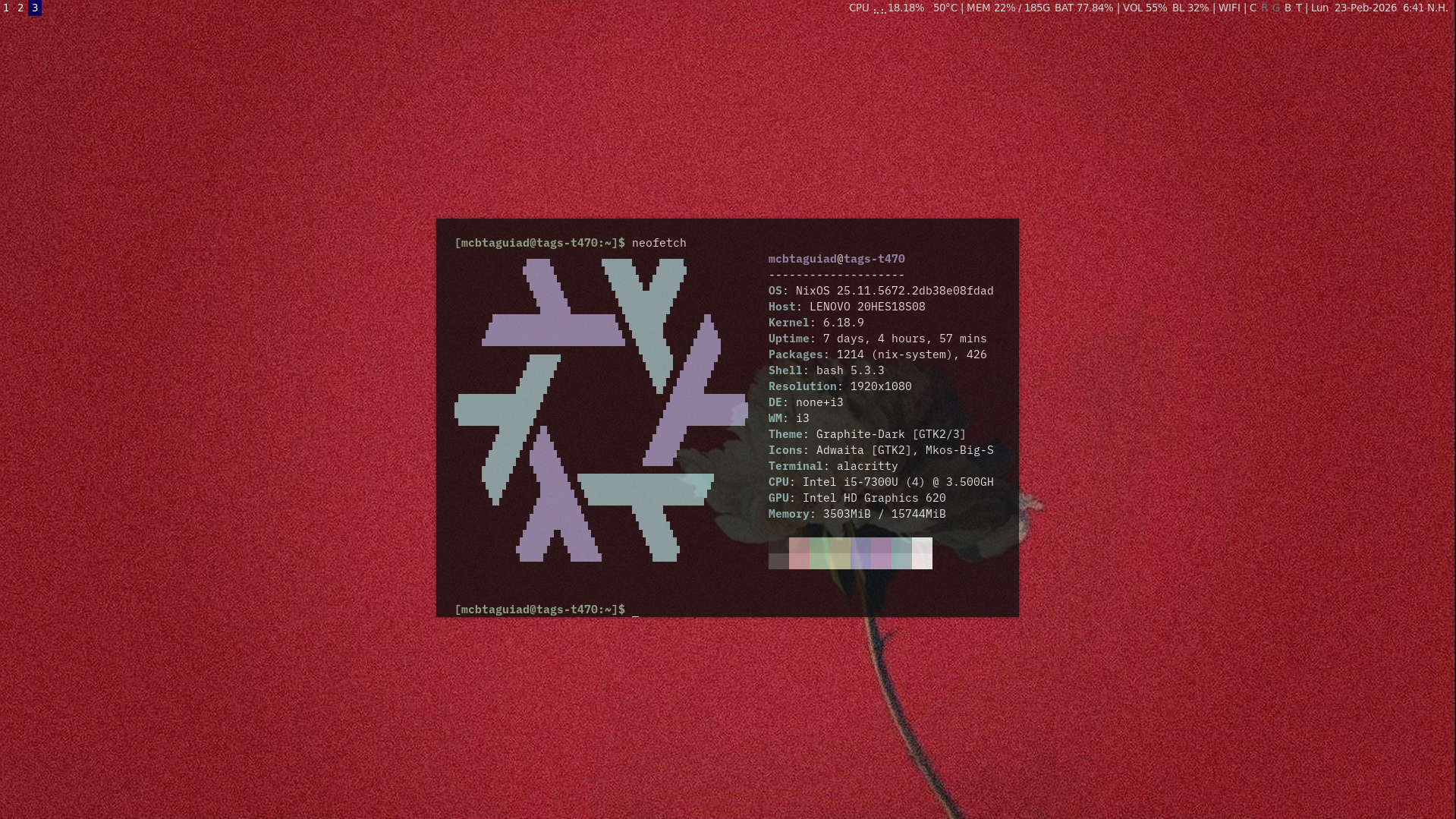
This maybe be the end of my distro hopping from ubuntu - mint - debian - fedora - popos - arch - void - artix, and finally nixOS. I just the love that almost everything is declarative to change in the system, so if you break anything you can just spin the last generation that is working. BTW this is not a tutorial, this is a note for my future stupid self if I ever have to build everything from scratch.
Repo for this blog - link.
Table of Contents
SSH
1  # Enable the OpenSSH daemon.
2  services.openssh = {
3    enable = true;
4  };
Package Manager / flakes
Search package
Add this in first in /etc/nixos/configuration.nix.
1nix.settings.experimental-features = [ "nix-command" "flakes" ];
Search the official Nixpkgs for a package, e.g., “cargo”
1nix search nixpkgs cargo
Or just search from the nixOS package site. https://search.nixos.org/
Install package
You can either install package as system-wide or userspace. Some cases you can declare it in services that needed that package - see i3wm section.
 1  # system-wide
 2  environment.systemPackages = with pkgs; [
 3    vim
 4    wget
 5    curl
 6    neofetch
 7  ];
 8
 9  # userspace
10  users.users.YourUserName = {
11    isNormalUser = true;
12    description = "Your Name";
13    extraGroups = [ "networkmanager" "wheel" ];
14    packages = with pkgs; [
15      firefox
16      vscode
17      alacritty
18      kubectl
19      thunderbird
20      docker
21      ];
22  };
Home Manager
Here you configure package and service that is not system wide and only available to the user. I still preffer every config configured in configuration.nix, I’m the only user of the system.
Install
1nix-channel --add https://github.com/nix-community/home-manager/archive/master.tar.gz home-manager
2nix-channel --update
Run home-manager to generate init config. Config is located at `~./.config/home-manager/home.nix'
Sample Config
home.nix
 1{ config, pkgs, ... }:
 2
 3{
 4  home.username = "mcbtaguiad";
 5
 6  home.homeDirectory = "/home/mcbtaguiad";
 7  home.stateVersion = "25.11"; # Please read the comment before changing.
 8
 9  home.packages = [
10
11  ];
12
13  home.file = {
14    # '';
15  };
16
17  home.sessionVariables = {
18    # EDITOR = "emacs";
19  };
20
21  programs.home-manager.enable = true;
22
23  programs.vim = {
24    enable = true;
25    plugins = with pkgs.vimPlugins; [
26      vim-nix
27    ];
28    settings = {
29      ignorecase = true;
30    };
31    extraConfig = ''
32      set mouse=a
33  };
34}
Build/Install
1home-manager switch
Fonts
Nothing special, same with package install.
1  fonts.packages = with pkgs; [
2    noto-fonts
3    noto-fonts-cjk-sans
4    noto-fonts-color-emoji
5    liberation_ttf
6    ibm-plex
7  ];
Networking
NetworkManager
NetworkManager is enabled by default, comming from artix I am still contemplating to use connman. Will update this blog if I ever gone mad and messed up my config again.
1  # Enable networking
2  networking.networkmanager.enable = true;
Bridge Network
If you plan to use virtualization, then I recommend you to enable bridge network. This will allow your VM to get IP from you router DHCP server.
 1 # Bridge network
 2  networking.useDHCP = false;
 3  networking.bridges = {
 4    "br0" = {
 5      interfaces = [ "enp0s31f6" ];
 6    };
 7  };
 8  networking.interfaces.br0.ipv4.addresses = [
 9    {
10      address = "192.168.254.69";
11      prefixLength = 24;
12    }
13  ];
14  networking.defaultGateway = "192.168.254.254";
15  networking.nameservers = [
16    "1.1.1.1"
17    "8.8.8.8"
18  ];
19  networking.firewall.checkReversePath = "loose";
Sounds and Bluetooth
pipewire
 1  services.pulseaudio.enable = false;
 2  security.rtkit.enable = true;
 3  services.pipewire = {
 4    enable = true; # if not already enabled
 5    alsa.enable = true;
 6    alsa.support32Bit = true;
 7    pulse.enable = true;
 8    # If you want to use JACK applications, uncomment the following
 9    #jack.enable = true;
10  };
11
12
bluetooth
1  # Enable bluetooth
2  services.blueman.enable = true;
3  hardware.bluetooth.enable = true;
Gnome
I’m switching from i3 and gnome (depending on the mood ahaha)
1# Enable Gnome
2  services.displayManager.gdm.enable = true;
3  services.desktopManager.gnome.enable = true;
i3wm and i3blocks
 1  services.xserver = {
 2    enable = true;
 3    #desktopManager = {xterm.enable=false;};
 4    windowManager.i3 = {
 5      enable = true;
 6      extraPackages = with pkgs; [
 7        dmenu
 8        #i3status
 9        i3lock
10        i3blocks
11      ]; };
12  };
13
14  # add this to make i3blocks work
15  environment.pathsToLink = [ "/libexec" ];
Backlight
I’m using light to handle my backlight, look at documentation if you prefer xbacklight.
1 programs.light.enable = true;
Power Management
I’m using laptop, need to add battery threshold and profile management - tlp can do all that.
 1  # Disable power daemon, conflicts with tlp
 2  services.power-profiles-daemon.enable = false;
 3  # Enable thermald
 4  services.thermald.enable = true;
 5  # Enable tlp
 6  services.tlp = {
 7      enable = true;
 8      settings = {
 9        CPU_SCALING_GOVERNOR_ON_AC = "performance";
10        CPU_SCALING_GOVERNOR_ON_BAT = "powersave";
11
12        CPU_ENERGY_PERF_POLICY_ON_BAT = "power";
13        CPU_ENERGY_PERF_POLICY_ON_AC = "performance";
14
15        CPU_MIN_PERF_ON_AC = 0;
16        CPU_MAX_PERF_ON_AC = 100;
17        CPU_MIN_PERF_ON_BAT = 0;
18        CPU_MAX_PERF_ON_BAT = 20;
19
20       #Optional helps save long term battery health
21       START_CHARGE_THRESH_BAT0 = 40; # 40 and below it starts to charge
22       STOP_CHARGE_THRESH_BAT0 = 80; # 80 and above it stops charging
23
24      };
25  };
Environment
Unlike in traditional linux where you just have to add it in .bashrc or .profile, in here you have to declare it in configuration. Look up documentation for your specific need. In my case I need to add .local/bin to $PATH.
1 environment.localBinInPath = true;
Python
PIP install is also declarative if you want it to persist in you system. For development stick to python-env.
1  environment.systemPackages = with pkgs; [
2    (python3.withPackages (ps: with ps; [
3      psutil
4      flask
5    ]))
6
7  ];
Mounts
Mounts are configured in /etc/nixos/hardware-configuration.nix.
If you dont know your disk type.
 1lsblk -f
 2NAME FSTYPE FSVER LABEL                        UUID                                 FSAVAIL FSUSE% MOUNTPOINTS
 3sda
 4└─sda1
 5     exfat  1.0                                776D-C5F6                              38.4G    92% /srv/ssd
 6sdb  iso966 Jolie nixos-graphical-25.11-x86_64 1980-01-01-00-00-00-00
 7├─sdb1
 8│    iso966 Jolie nixos-graphical-25.11-x86_64 1980-01-01-00-00-00-00
 9└─sdb2
10     vfat   FAT12 EFIBOOT                      1234-5678
Get UUID
1blkid /dev/sda1
2/dev/sda1: UUID="776D-C5F6" BLOCK_SIZE="512" TYPE="exfat" PARTUUID="90c46da4-bc2b-4dd2-ad89-715e6de657b2"
Add in hardware configuration.
1  fileSystems."/srv/ssd" =
2    { device = "/dev/disk/by-uuid/776D-C5F6";
3      fsType = "exfat";
4    };
To update /etc/fstab rebuild nixOS.
1sudo nixos-rebuild switch
Virtualization
Add in enviroment package.
1  environment.systemPackages  = with pkgs; [
2    virt-manager
3    libguestfs
4    dnsmasq
Add user in libvirtd group.
 1  users.users.mcbtaguiad = {
 2    isNormalUser = true;
 3    description = "Mark Taguiad";
 4    extraGroups = [
 5      "networkmanager"
 6      "wheel"
 7      "libvirtd"
 8      "qemu-libvirtd"
 9    ];
10  };
Enable libvirtd service.
 1  virtualisation.libvirtd = {
 2    enable = true;
 3    qemu = {
 4      package = pkgs.qemu_kvm;
 5      vhostUserPackages = with pkgs; [ virtiofsd ];
 6      runAsRoot = true;
 7      swtpm.enable = true;
 8    };
 9    allowedBridges = [ "br0" ];
10  };
Add “kvm-intel” in the bootloader, “kvm-amd” is you are using amd.
1  boot.kernelParams = [
2    "kvm-intel"
3  ];
Nvidia
Nvidia just sucks, my next purchase would be AMD. FUCK NVIDIA!. This section is well documented in NixOS wiki, I’ll just put it here as a reference when I reinstall NixOS.
 1  # Enable OpenGL
 2  hardware.graphics = {
 3    enable = true;
 4  };
 5
 6  # Load nvidia driver for Xorg and Wayland
 7  services.xserver.videoDrivers = [ "nvidia" ];
 8
 9  hardware.nvidia = {
10    modesetting.enable = true;
11    powerManagement.enable = true;
12    powerManagement.finegrained = false;
13    open = false;
14    nvidiaSettings = true;
15    prime = {
16      offload = {
17        enable = true;
18        enableOffloadCmd = true;
19      };
20      # sync.enable = true;
21      intelBusId = "PCI:0:2:0";
22      nvidiaBusId = "PCI:1:0:0";
23    };
24
25    # Optionally, you may need to select the appropriate driver version for your specific GPU.
26    package = config.boot.kernelPackages.nvidiaPackages.stable;
27  };
Boot Parameter.
1  # Boot Kernel Parameters
2  boot.kernelParams = [
3    "nvidia-drm.modeset=1"
4    "mem_sleep_default=deep"
5  ];
Apply and rebuild NixOS
When you think everything is in order run this command to rebuild your system. This will create new generation and store the old generation in case you need to rollback.
1sudo nixos-rebuild switch
To upgrade packages.
1sudo nixos-rebuild switch --upgrade
Delete old generation
Make sure to delete old generation that no longer needed to free-up some space.
1sudo nix-collect-garbage -d #$ this will delete old generation
2sudo nix-env --profile /nix/var/nix/profiles/system --delete-generations +5 # keep 5
Rebuild and update boot menu
1sudo nixos-rebuild switch
Failed Build
If you encounter error like fail rebuild even though you’ve revert back changes. You might need to delete cache and old failed build.
1sudo nix-collect-garbage -d
2sudo nix-store --verify --check-contents --repair
chroot
In a scenario where you delete all the past generation, you can still use chroot method to fix your system. Boot to a installation media.
1mount /dev/sda2 /mnt
2mount /dev/sda1 /mnt/boot
3nixos-enter
4nixos-rebuild boot